
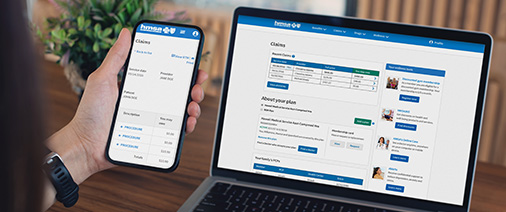

Pay bills online! eInvoice Connect offers enhanced security and improved functionality to make managing and paying your bills easier than ever. For the best experience, please use a desktop computer with the latest browser version. Mobile browsers may not be fully supported.
We’re experiencing payment processing delays. If you received a notice about your premium billing, you can quickly create a My Account or an Employer Billing Portal account to:
- Check your current balance and past bills
- Make one-time payments
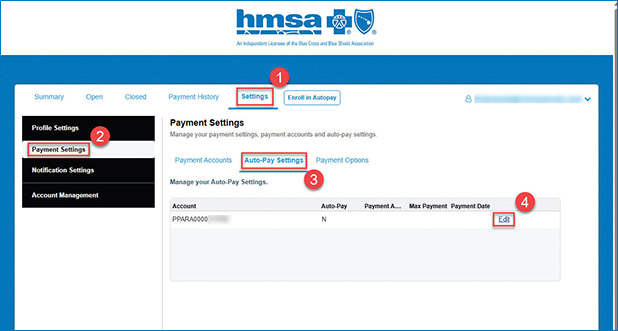
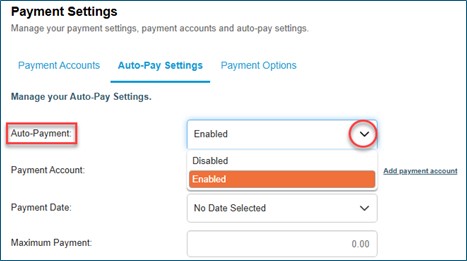
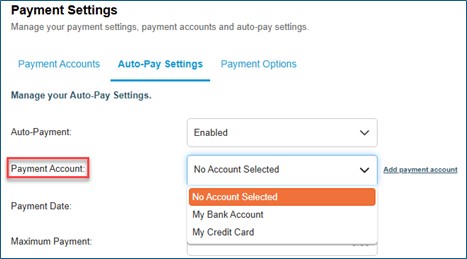
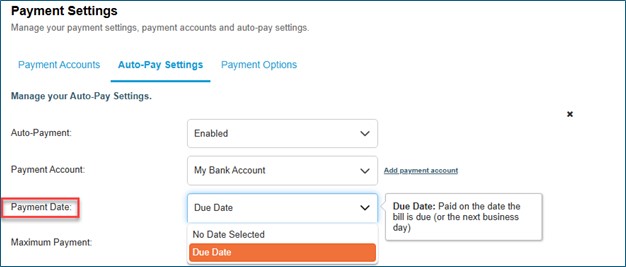
- Enable, update, and/or review your automatic payment settings
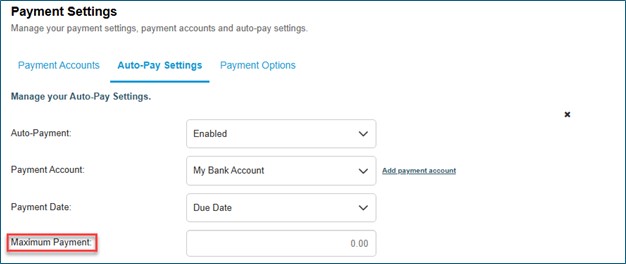
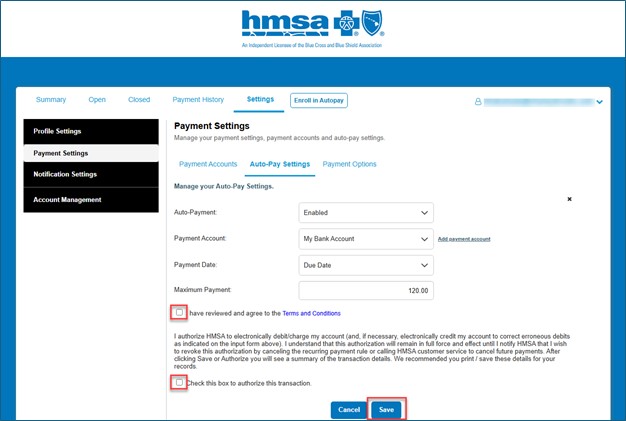
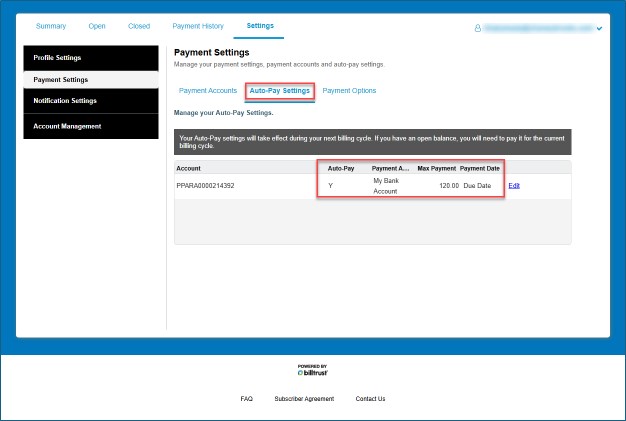
Please refer to the step-by-step instructions with photos below or the guides for assistance in updating your payment information and settings.
Instructions for Paying Online
Members
Employers
Frequently Asked Questions
I recently paid my bill. Why did I receive a delinquent notice?
How do I know if I’m already enrolled in automatic payments?
I mailed in my automatic payments form. How long will it take to process?
Why did I get a hard copy bill when I signed up for automatic payments?
Do I need to update my automatic payment information if my premium changes?
Do I need to set up automatic payments separately for my medical and dental plans?
If this is your first time making a payment:
Members:
- Log in to My Account. If you don’t have one, you can follow the instructions in HMSA’s My Account for HMSA members.
- Once logged in to My Account, select Pay my bill and you will be redirected to eInvoice Connect.
Employers:
- Contact a Membership Services representative at 808-948-6376, Monday-Friday, 8 a.m.-5 p.m., with the following information:
- Group number, company name, and company address.
- Once verified, go to the HMSA Employer Billing Portal(bookmark this page) on hmsa.com/employers.
- Click Forgot password? and check your email for a reset password link.
- Once your password has been updated, return to the Employer Billing Portal to log in.
If you paid bills online before Sept. 24, 2025:
Members:
If you’ve previously paid your bill online through My Account, you’ll need to update your payment information. If automatic payments were enabled, you’ll need to reenable your pay preferences to ensure future payments are processed successfully.
Employers:
If you’ve previously paid your bill online through VueBill, you’ll need to create a new account through the HMSA Employer Billing Portal.
- Go to the HMSA Employer Billing Portal (bookmark this page).
- Click Forgot password?
- Enter the email address you used previously for your VueBill account and click Continue.
- Check your email for a reset password link.
- Click Reset Password and create a new password.
- Return to the login page to log in with your new password. Payment information in the account will need to be reentered. If automatic payments were enabled, you’ll need to reenable your pay preferences to ensure future payments are processed successfully.
Additional instructions
To update payment settings
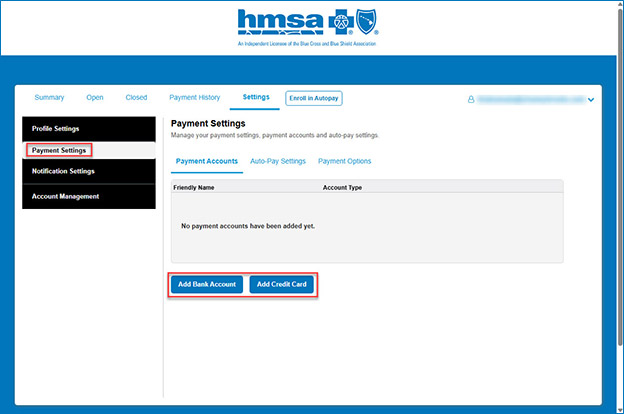
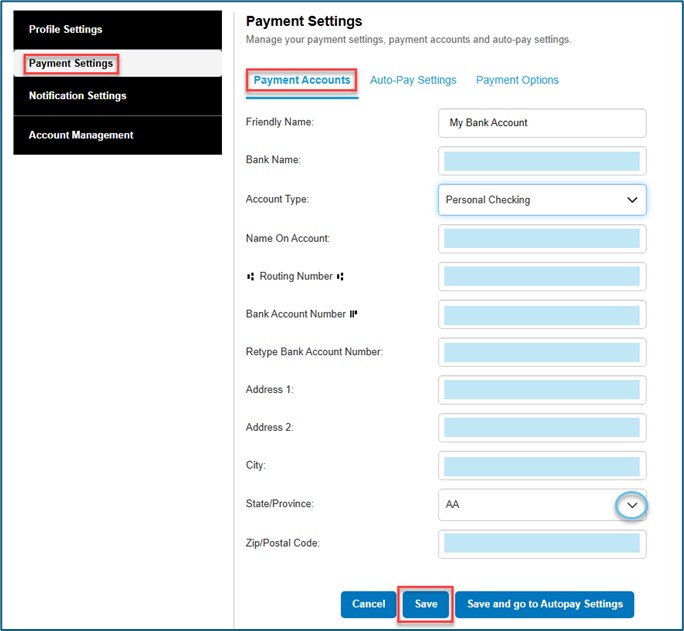
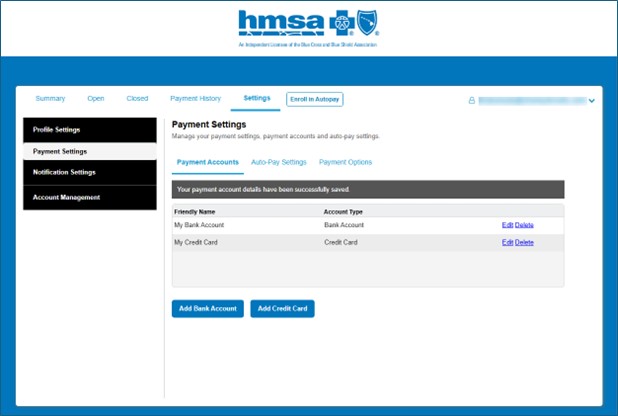
To enable automatic payments
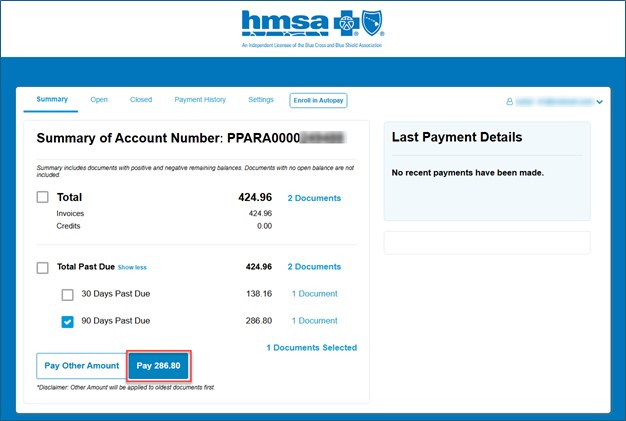
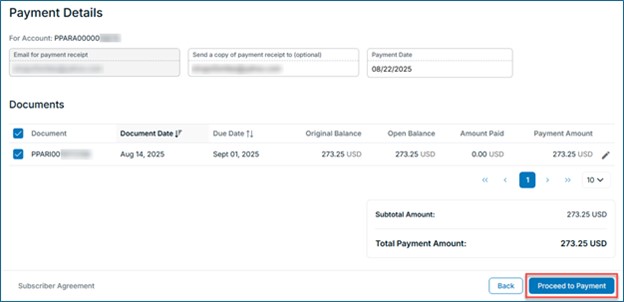
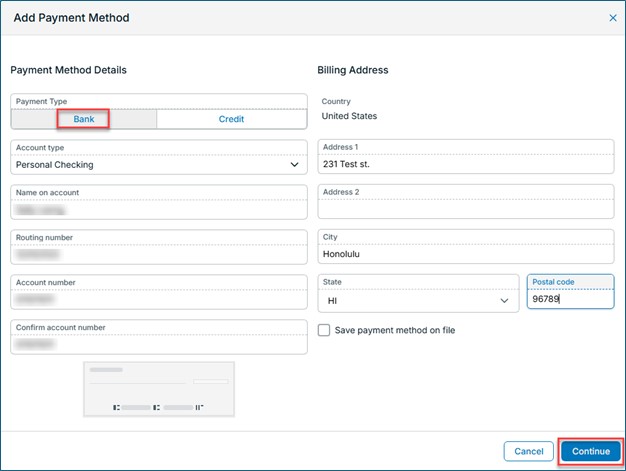
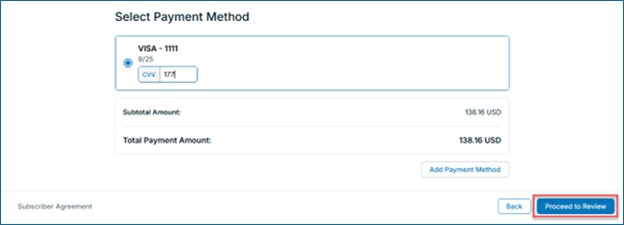
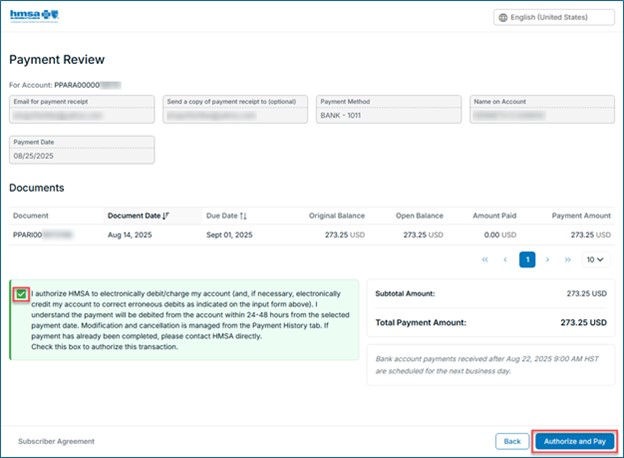
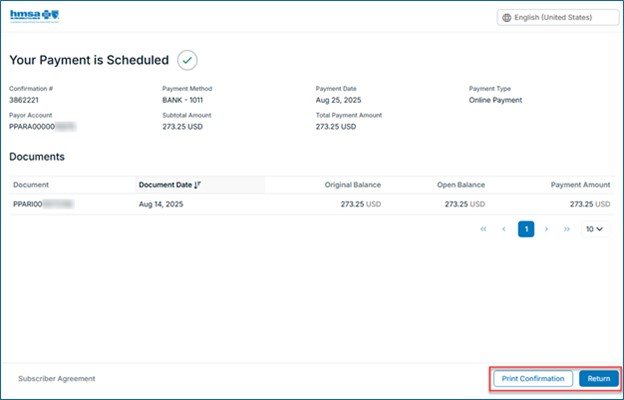
To make a one-time payment
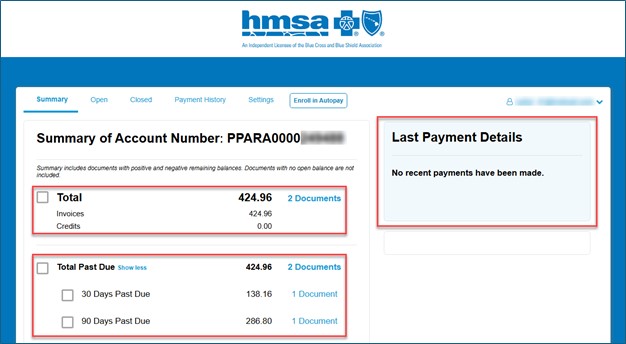
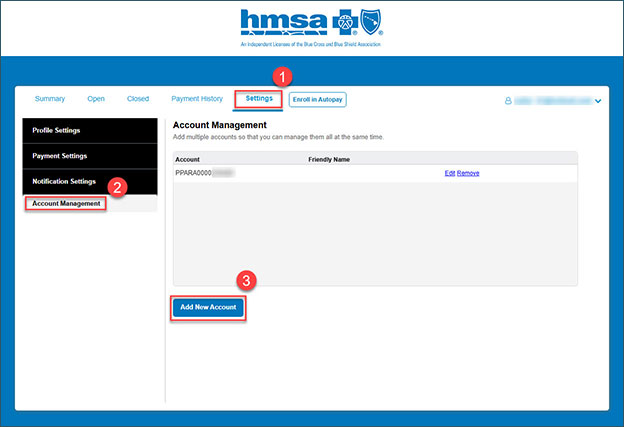
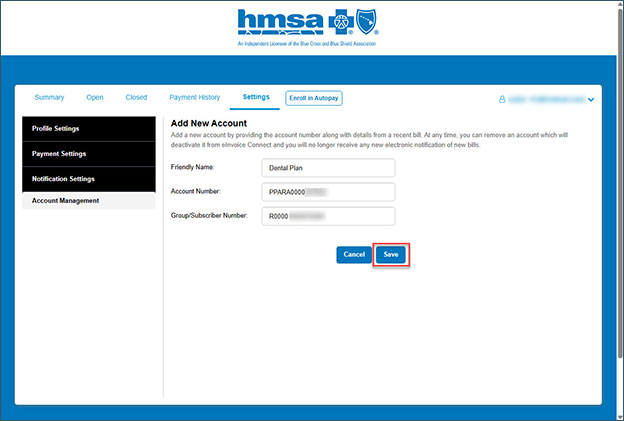
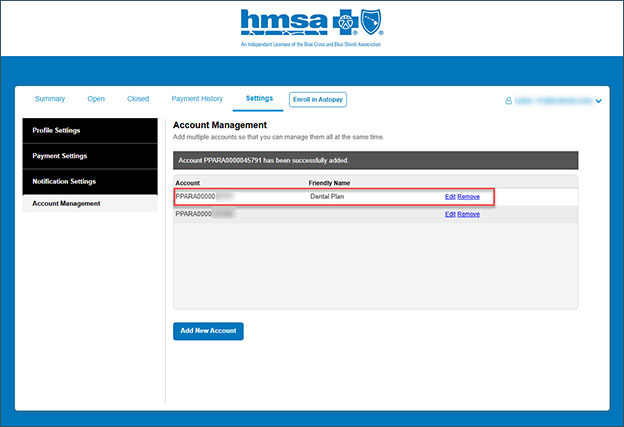
To link accounts
You can also pay your bill in-person at our HMSA Centers or by mail.
Questions? We’re here to help. Contact us:
- Individual plan members:
- 808-948-6140 or 1-800-782-4672.
- Monday-Friday, 8 a.m.-5 p.m. (Afternoons are the best time to reach us by phone.)
- ms1call@hmsa.com.
- HMSA Medicare Advantage members:
- 808-948-6174 or 1-800-782-4672.
- TTY: 711.
- Monday-Friday, 8 a.m.-5 p.m.
- Employer groups:
- 808-948-6376 or 1-800-316-4672.
- Monday-Friday, 8 a.m.-5 p.m. (Afternoons are the best time to reach us by phone.)
- ms1call@hmsa.com.